

Apply a Surcharge
Offset your corporate card processing costs in the form of surcharges.
📘 What this guide covers
How surcharging works on Super, the confirmation screen your customer sees, how the surcharge affects the amount they pay, where to find the surcharge amount after a payment, and how refunds are handled.
Card schemes charge a fee for accepting payments on their network. Most businesses absorb this cost in their pricing, but for corporate cards - where acceptance costs are higher - you can pass the cost on to the customer as a surcharge added to their payment.
Super calculates and applies the surcharge for you. Once surcharging is enabled on your brand, Super detects corporate cards at checkout, shows the customer the surcharge and the revised total, and asks them to accept it before the payment is taken. There are no changes to your API requests.
Enabling Surcharging
Ask your account manager to enable surcharging. Super configures the rate and switches it on for you.
There is no implementation work at your end. You do not need to change your API requests, handle a new field, or build anything into your checkout - the surcharge, the confirmation screen and the webhook field all come from Super.
Surcharging is configured on a per-brand basis, not at account level. If you operate several brands, you can have it enabled on some and not others.
How Surcharging Works
- You create a payment as normal. Send the amount for the goods or services only. No surcharge fields are required in your request.
- Super detects a corporate card. As the customer enters their card details at checkout, Super identifies the card type.
- Super calculates the surcharge. The rate configured against your brand is applied and VAT at 20% is added on top. The surcharge is capped at 1.6% of the payment amount.
- The customer is asked to accept the surcharge. A confirmation screen shows the purchase price, the surcharge and the revised total. The customer either accepts and pays, or cancels.
- You receive the surcharge amount. The
surchargeAmountis returned on the payment webhook so you can reconcile it.
All corporate card types go through the surcharge flow when surcharging is enabled. Consumer cards, and payments made by bank, are never surcharged.
The Surcharge Is Added On Top
This is the most important behaviour to understand: the amount you request is not the amount the customer pays.
Super adds the surcharge to the amount in your payment request, then adds VAT at 20% to the surcharge. If you create a payment for £180.01 and the customer pays with a corporate card carrying a 1.6% surcharge, the customer is charged £183.47.
The Surcharge Confirmation Screen
Super will not surcharge a customer without their agreement. When a corporate card is detected, the customer is shown a confirmation screen before the payment is taken.
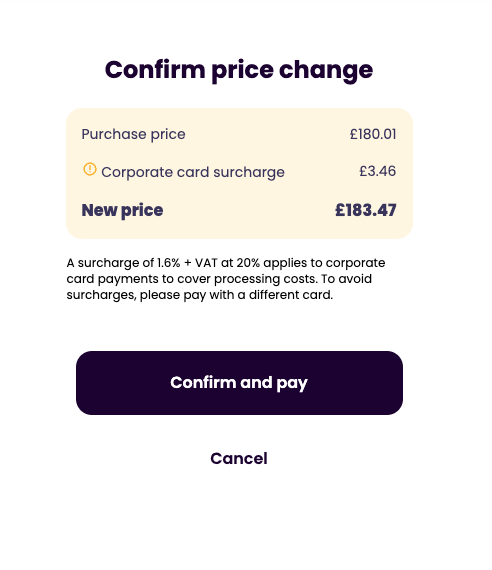
The screen sets out the purchase price, the surcharge and the new total, explains that the surcharge covers the cost of processing corporate card payments, and tells the customer they can avoid it by paying with a different card.
The customer then has two options:
- Confirm and pay - the surcharge is accepted and the payment is taken for the revised total.
- Cancel - the payment is cancelled and the customer is redirected to the
cancelUrlyou supplied when you created the payment.
Because the customer can decline, a corporate card at checkout does not guarantee a completed payment. Make sure the cancelUrl on every payment points somewhere that lets the customer choose a different card and try again.
The confirmation screen is shown on Embedded, the Hosted Payment Page and Payment Links, and on the WooCommerce and Shopify plugins. You do not need to build or configure it.
Receiving the Surcharge Amount
When a payment completes, the surchargeAmount object is included in the payment webhook payload alongside the fundingSummary. It is present on both the payment.success and payment.failed events.
Amounts use the same shape as every other amount in the Super API: amount in minor units, with amountMultiplier telling you the divisor. surchargeAmount is the full amount the customer was charged for the surcharge, VAT included.
{
  "data": {
    "amount": {
      "amount": 18001,
      "currency": "GBP",
      "amountMultiplier": 100
    },
    "source": "checkoutSession",
    "status": "PaymentSuccess",
    "brandId": "123-123-123-123",
    "paymentId": "123-123-123-123",
    "fundingSummary": {
      "superFundedAmount": {
        "amount": 0,
        "currency": "GBP",
        "amountMultiplier": 100
      },
      "customerFundedAmount": {
        "amount": 18001,
        "currency": "GBP",
        "amountMultiplier": 100
      },
      "merchantFundedAmount": {
        "amount": 0,
        "currency": "GBP",
        "amountMultiplier": 100
      },
      "cashPayableToMerchant": {
        "amount": 18001,
        "currency": "GBP",
        "amountMultiplier": 100
      }
    },
    "surchargeAmount": {
      "amount": 346,
      "currency": "GBP",
      "amountMultiplier": 100
    },
    "paymentReference": "CA3XSCFEE21G39GJXW",
    "externalReference": "Order-123",
    "paymentInitiatorId": "YOUR_PAYMENT_INITIATOR_ID"
  },
  "eventId": "evt_123",
  "eventType": "payment.success",
  "eventDatetime": "2026-03-15T10:00:00.000Z"
}
⚠️ Important
The surcharge sits outside thefundingSummary. In the example above the customer was charged £183.47, butamount,customerFundedAmountandcashPayableToMerchantall report £180.01 - the purchase price. OnlysurchargeAmounttells you the extra £3.46 was taken. To work out what the customer actually paid, addsurchargeAmounttocustomerFundedAmount.
If no surcharge was applied - because the customer paid with a consumer card, paid by bank, or surcharging is not enabled on your brand - surchargeAmount is null.
For the full webhook payload and event list, see the webhooks reference.
Refunds
The surcharge is not refundable. Refunds are raised against the purchase price only. The surcharge the customer paid is not returned to them, whether you refund the payment in full or in part. This is set out in your Super terms.
Refunding the £180.01 payment above in full returns £180.01 to the customer. The £3.46 surcharge is retained. The maximum you can refund is the purchase price, which is the amount on the payment webhook - not the total the customer was charged.
⚠️ Important
A customer who is refunded in full will be £3.46 out of pocket on the example above. Make sure your refund and customer service policies account for this, and that your surcharge disclosure makes it clear the charge is non-refundable.
For how to raise a refund, see Refund a Payment.
Testing
You can simulate a surcharged payment in the test environment by setting the card holder name to CORPORATE. Super treats the card as a corporate card and applies your brand's configured surcharge.
Surcharging must be enabled on your test brand before the scenario will work.
See Test with Cards for the full list of test scenarios and card details.
Next Steps
Updated 3 months ago