

Save a Card & Take Payment
Customers can request to store their card details during a payment, which you can then use for future payments without customers having to re-enter the details.
📘 What this guide covers
Steps 1–5: creating the customer, running the initial attended (cardholder-present) payment, and retrieving the saved
paymentMethodIdfrom a webhook. For charging the saved card without the customer present - see Charge a Saved Card .
How It Works
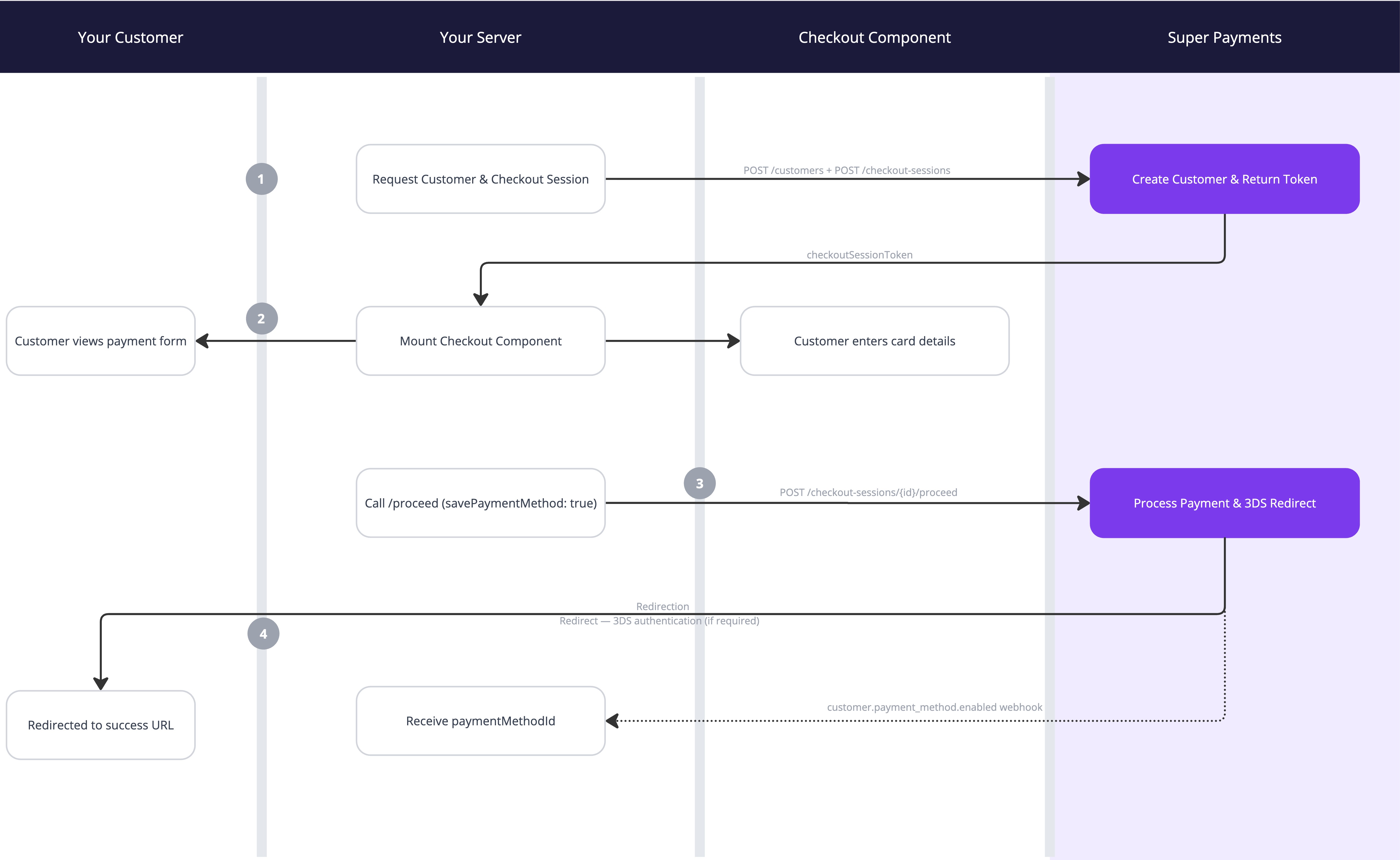
The initial payment is a cardholder-initiated transaction (CIT) - the customer is present and actively completing the checkout. As part of this flow:
- 3D Secure authentication is applied automatically. Super handles 3DS on your behalf. If the card issuer requires a challenge, the customer is redirected through it before landing on your
successUrl. - The card is tokenised and stored securely during the payment.
- Once the payment completes, a
customer.payment_method.enabledwebhook delivers thepaymentMethodIdyou will use for all future charges.
Subsequent charges using the paymentMethodId are merchant-initiated transactions (MITs) and fall outside the scope of Strong Customer Authentication - 3DS is neither required nor triggered.
Prerequisites
- Your
paymentInitiatorIdandbrandId(available in the business portal) - A webhook endpoint configured to receive
customer.payment_methodevents, this can be done in the webhooks section test & production
Integration Guide
Contact your account manager to enabled Apple Pay and Google Pay tokenisation on your account.
Step 1: Create a Customer
Before initiating the checkout session, create a customer record in Super. Store the id returned in the response - you will pass this to the checkout session in Step 2.
Request
curl --request POST \
     --url https://api.superpayments.com/2026-04-01/customers \
     --header 'accept: application/json' \
     --header 'authorization: YOUR_SECRET_KEY' \
     --header 'content-type: application/json' \
     --data '{
       "brandId": "brand_ID",
       "emailAddress": "[email protected]",
       "externalReference": "customer_123",
       "firstName": "John",
       "lastName": "Smith",
       "metadata": {
         "Name": "SandboxUser"
       },
       "phoneNumber": "07462123456"
     }'
curl --request POST \
--url https://api.test.superpayments.com/2026-04-01/customers \
--header 'accept: application/json' \
--header 'authorization: YOUR_SECRET_KEY' \
--header 'content-type: application/json' \
--data '{
"brandId": "brand_ID",
"emailAddress": "[email protected]",
"externalReference": "customer_123",
"firstName": "John",
"lastName": "Smith",
"metadata": {
"test": "Sandbox"
},
"phoneNumber": "07462124356"
}'| Field | Type | Description |
|---|---|---|
brandId | string (UUID) | The ID of the brand under which the customer is being created. Found in your business portal. |
emailAddress | string | The customer's email address. |
externalReference | string | Your own unique identifier for this customer. Use this to map the Super customer back to your system. |
firstName | string | Customer's first name. |
lastName | string | Customer's last name. |
metadata | object | Optional key-value pairs for any additional data you want to associate with the customer. |
phoneNumber | string | Customer's phone number. |
Response
{
  "brandId": "brand_ID",
  "createdAt": "2026-12-12T12:12:12.893Z",
  "emailAddress": "[email protected]",
  "externalReference": "customer_123",
  "firstName": "John",
  "id": "cus_123456789",
  "lastName": "Smith",
  "metadata": {
    "test": "Sandbox"
  },
  "paymentMethods": [],
  "phoneNumber": "07462123456",
  "updatedAt": "2026-12-12T12:12:12.893Z"
}
📘 Store the
idfield (e.g.cus_***...) in your system against the customer record. You will need it in Steps 2 and 4.
Step 2: Create a Checkout Session with Customer
Create a checkout session as you would for a standard embedded payment, but include the customer.id from Step 1 along with customer.savePaymentMethod: true. This links the session to the customer so the saved card is associated with them after payment.
Request
curl --request POST \
     --url https://api.superpayments.com/2026-04-01/checkout-sessions \
     --header 'accept: application/json' \
     --header 'authorization: YOUR_SECRET_KEY' \
     --header 'content-type: application/json' \
     --data '{
       "customer": {
         "id": "cus_123",
         "paymentMethodMetadata": {
           "metadata": "test"
         },
         "savePaymentMethod": true
       },
       "paymentInitiatorId": "ID1234"
     }'
curl --request POST \
--url https://api.test.superpayments.com/2026-04-01/checkout-sessions \
--header 'accept: application/json' \
--header 'authorization: YOUR_SECRET_KEY' \
--header 'content-type: application/json' \
--data '{
"customer": {
"id": "cus_1234"
},
"paymentInitiatorId": "ID1234"
}'Response
{
  "checkoutSessionId": "9a7f3bb3-4dfa-4a6d-bb85-99999999",
  "checkoutSessionToken": "eyJhbGciOiJIUzI1NiIsInR5cCI6IkpXVCJ9..."
}
Pass the checkoutSessionToken to the frontend to mount the component in Step 3.
Step 3: Mount the Checkout Component
Add the Super payment.js library and <super-checkout> web component to your page. Pass the checkoutSessionToken from Step 2 and the transaction amount.
<html>
  <head>...</head>
  <body>
    <script src="https://cdn.superpayments.com/js/payment.js"></script>
    <super-checkout
      amount="AMOUNT_IN_MINOR_UNITS"
      checkout-session-token="CHECKOUT_SESSION_TOKEN_FROM_STEP_2">
    </super-checkout>
  </body>
</html>
<html>
<head>...</head>
<body>
<script src="https://cdn.superpayments.com/js/test/payment.js"></script>
<super-checkout
amount="AMOUNT_IN_MINOR_UNITS"
checkout-session-token="CHECKOUT_SESSION_TOKEN_FROM_STEP_2">
</super-checkout>
</body>
</html>📘 3DS is handled automatically The checkout component and the
redirectUrlfrom Step 4 manage 3D Secure end-to-end. If the customer's issuer requires a challenge, they are routed through it before arriving at yoursuccessUrl. No additional 3DS configuration is needed.
When your customer clicks Place Order, call window.superCheckout.submit() to allow the component to validate card details before proceeding server-side:
<button onclick="handlePlaceOrderClicked()">Place Order</button>
<script>
async function handlePlaceOrderClicked() {
  const result = await window.superCheckout.submit();

	// Handle any failures appropriately for your checkout, for example...
	if (result.status === "FAILURE") {
		if (result.errorMessage) {
			throw new Error(result.errorMessage);
		} else {
			// Include a default error message in case nothing was received on the failure response.
			throw new Error("Something went wrong. No money has been taken from your account. Please refresh the page and try again.");
		}
	} else if (result.status === "SUCCESS") {
		// Proceed to Step 4 - call your server to complete the payment
	}
}
</script>
Step 4: Complete the Payment
After receiving a SUCCESS result from the component, call the proceed endpoint server-side.
Request
curl --request POST \
     --url https://api.superpayments.com/2026-04-01/checkout-sessions/{checkoutSessionId}/proceed \
     --header 'accept: application/json' \
     --header 'authorization: YOUR_SECRET_KEY' \
     --header 'content-type: application/json' \
     --data '{
       "amount": 15000,
       "currency": "GBP",
       "email": "[email protected]",
       "externalReference": "ORDER_123",
       "metadata": {
         "metadata": "test"
       },
       "paymentInitiatorId": "YOUR_PAYMENT_INIT_ID",
       "phone": "07462123456",
			 "failureUrl": "https://your-site.com/failure",
       "successUrl": "https://your-site.com/success",
			 "cancelUrl": "https://your-site.com/cancel"
     }'
curl --request POST \
--url https://api.test.superpayments.com/2026-04-01/checkout-sessions/{checkoutSessionId}/proceed \
--header 'accept: application/json' \
--header 'authorization: YOUR_SECRET_KEY' \
--header 'content-type: application/json' \
--data '{
"amount": 15000,
"currency": "GBP",
"customer": {
"id": "cus_123",
"paymentMethodMetadata": {
"metadata": "test"
},
"savePaymentMethod": true
},
"email": "[email protected]",
"externalReference": "ORDER_123",
"metadata": {
"metadata": "test"
},
"paymentInitiatorId": "YOUR_PAYMENT_INIT_ID",
"phone": "07462123456",
"failureUrl": "https://your-site.com/failure",
"successUrl": "https://your-site.com/success",
"cancelUrl": "https://your-site.com/cancel"
}'| Field | Type | Description |
|---|---|---|
amount | integer | Payment amount in minor units (e.g. 15000 = £150.00). |
currency | string | ISO 4217 currency code (e.g. GBP). |
externalReference | string | Your unique reference for this order. |
paymentInitiatorId | string | Your payment initiator ID from the business portal. |
successUrl / failureUrl / cancelUrl | string | Redirect destinations after the payment completes. |
Response
{
  "checkoutSessionId": "9a7f3bb3-4dfa-4a6d-bb85-cc91e7098600",
  "paymentIntentId": "7e13dde2-0839-4943-9eaa-eb8686afc112",
  "redirectUrl": "https://hooks.stripe.com/3d_secure_2/hosted?merchant=acct_1PEX2f..."
}
Redirect the customer to the redirectUrl immediately. This routes them through 3D Secure authentication (if required by their issuer) before landing on your successUrl or failureUrl.
📘 About the redirect The
redirectUrlhandles the complete post-payment flow including 3DS. Always redirect the customer to this URL - never assume the payment is complete after the proceed call returns.
Step 5: Receive the paymentMethodId via Webhook
paymentMethodId via WebhookOnce the payment is authorised and the card has been saved, Super sends a customer.payment_method.enabled event to your configured webhook endpoint. The paymentMethodId in this event is what you will use for all future off-session charges.
Webhook Event: customer.payment_method.enabled
{
  "data": {
    "type": "CARD",
    "usage": "OFF_SESSION",
    "status": "ENABLED",
    "customerId": "cus_123",
    "merchantId": "YOUR_MERCHANT_ID",
    "paymentMethodId": "pm_123"
  },
  "eventId": "evt_123",
  "eventType": "customer.payment_method.enabled",
  "eventDatetime": "2026-12-12T12:12:12.000Z"
}| Field | Type | Description |
|---|---|---|
data.paymentMethodId | string | The key value. Store this against the customer in your system - it is used to initiate all future off-session charges. |
data.customerId | string | The Super customer ID this payment method belongs to. Use this to look up the customer in your system. |
data.type | string | Payment method type. Will be CARD for card-based off-session payments. |
data.usage | string | Will be OFF_SESSION confirming the card is enabled for merchant-initiated charges. |
data.status | string | ENABLED means the card is ready to be charged. |
data.merchantId | string | Your merchant ID in Super. |
eventType | string | Always customer.payment_method.enabled for this event. |
eventDatetime | string | ISO 8601 timestamp of when the payment method was enabled. |
📘 Webhook setup Configure your webhook endpoint in the business portal. Subscribe specifically to the
customer.payment_method.enabledevent type. For general webhook guidance, see the Webhook Documentation.
3DS & SCA Reference
| Transaction type | Customer present? | 3DS required? | Who handles it? |
|---|---|---|---|
| Initial payment (this guide) | Yes - CIT | Yes, automatically | Super via redirectUrl |
| Future off-session charges | No - MIT | No | N/A - MIT exemption applies |
3DS2 authentication on the initial CIT is managed end-to-end by Super - the redirectUrl returned from the proceed call will route the customer through any required issuer challenge before completing. You do not need to pass any additional 3DS parameters.
Testing
Use the following test cards in the sandbox environment. For all cards, use:
- Expiry: any future date (e.g.
03/30) - CVC: any 3-digit number (e.g.
737) - Postcode: any value
Simulate a successful payment
Test 3D Secure authentication
For a full list of test cards and decline scenarios, see Test with Cards.
Next Steps
Updated 3 months ago